
CollaboraOnline in Plesk connecting to Nextcloud on Rocky Linux 8, native install
This install is without using Docker to cut complexity and save system resources. There are also many links to information I used when setting this up; I had lots of problems with this install!

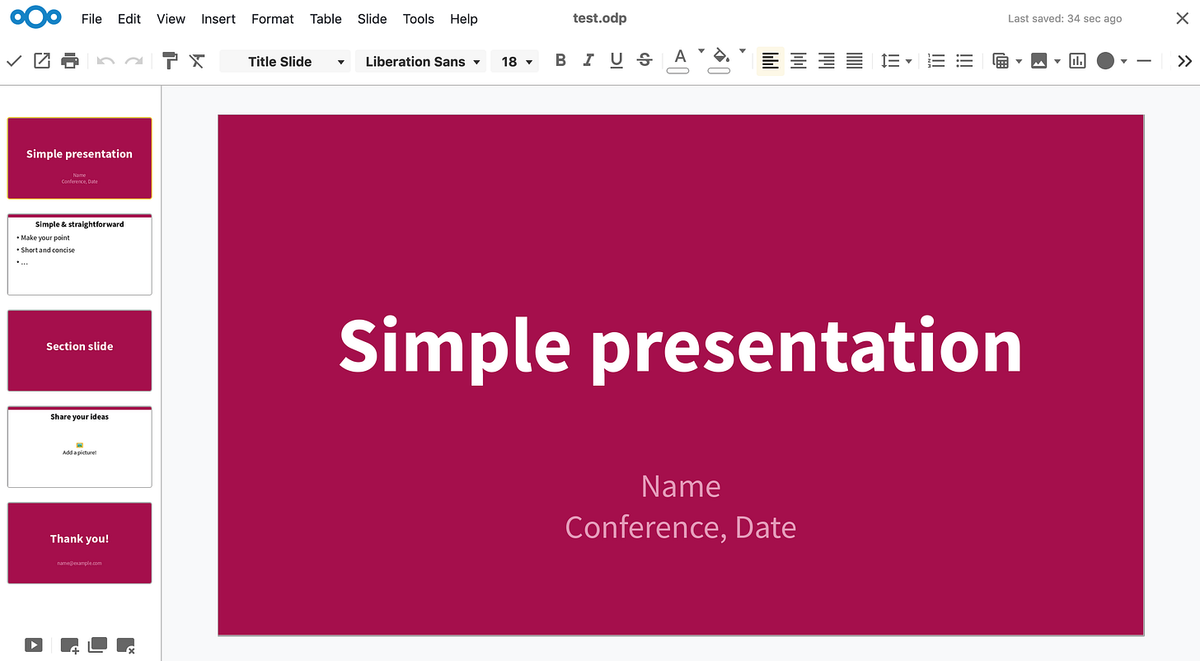
This is an old post imported from my old site. It's obsolete now, to install Nextcloud with an office suite, use 'Nextcloud All-in-One' instead of this guide.
This install should be similar for CentOS Stream and Red Hat Enterprise Linux 8 too.
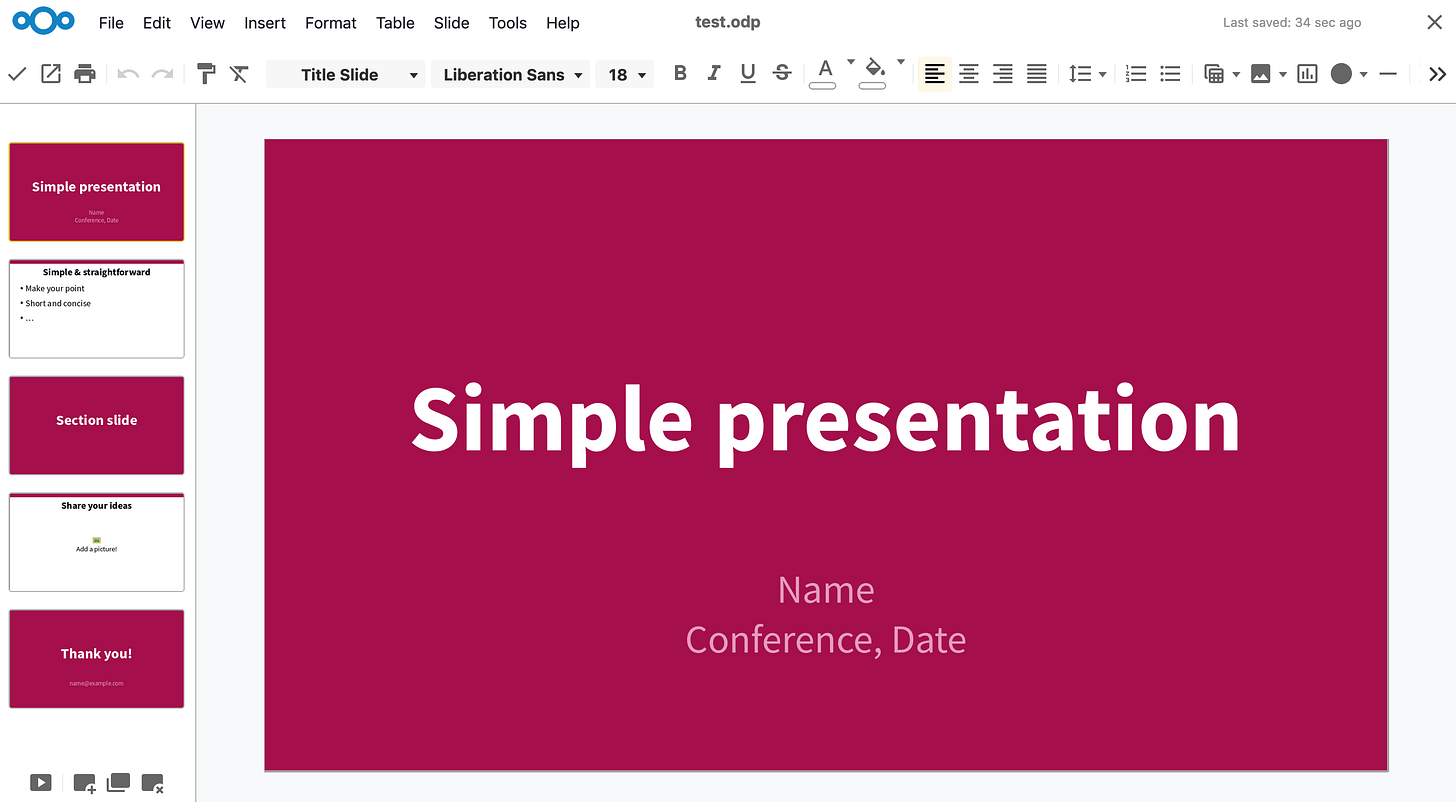
Installing Collabora Online
For me, getting the mess that is Nextcloud and Collabora Online Community Edition working and installed on my system was to date the most challenging install I have done. Arch Linux is much easier to install!
Requirements:
- root-access via ssh
- Working Nextcloud installation with Nextcloud Office app
- Empty subdomain created in Plesk and secured with SSL
- no running service on port 9980, check with
netstat -tulpen | grep 9980
Step 1: Compiling Collabora
(We don’t have to compile Collabora, thank you Collabora)
Collabora have released packages for CentOS and we can use these.
All you have to do is execute the commands in the link above on your system
rpm --import https://www.collaboraoffice.com/repos/CollaboraOnline/CODE-centos8/GPG-KEY-CODE-centos8yum install coolwsd CODE-brandsystemctl restart coolwsdTesting the install:
systemctl restart coolwsd
systemctl start coolwsd
systemctl stop coolwsd
systemctl restart coolwsd.service
See that coolwsd is running on this port:
netstat -tulpen | grep 9980Step 2: Config of Collabora
In this step we have to do the following:
- allow the nextcloud-instance to interact
- set the admin-credentials
- make letsencrypt-certs readable to collabora
First edit the configuration-file of Collabora:
nano /etc/loolwsd/loolwsd.xmlSet proto in the net-section to IPv4.
Set seccomp in the security-section to false
Set allowed_languages (to speed up loading times by deleting languages that are not required on your system).
In the admin_console-section edit the credentials for admin-user:
<username desc="The username of the admin console. Ignored if PAM is enabled.">admin-name</username>
<password desc="The password of the admin console. Deprecated on most platforms. Instead, use PAM or loolconfig to set up a secure password.">your-password</password>
Save File now.
Because cool-user does not have read-rights to the path where letsencrypt-files are stored and we don’t want to edit Plesk-System-Rights, we create a script to copy the files and change the owner to cool-user:
nano /etc/cron.weekly/collabora_certsadd the following content and adjust the FQDN:
#!/bin/bash
cp /usr/local/psa/var/modules/letsencrypt/etc/archive/collabora.zenquest.co/cert1.pem /etc/coolwsd/cert.pem
cp /usr/local/psa/var/modules/letsencrypt/etc/archive/collabora.zenquest.co/privkey1.pem /etc/coolwsd/key.pem
cp /usr/local/psa/var/modules/letsencrypt/etc/archive/collabora.zenquest.co/chain1.pem /etc/coolwsd/ca-chain.cert.pem
chown cool /etc/coolwsd/cert.pem
chown cool /etc/coolwsd/key.pem
chown cool /etc/coolwsd/ca-chain.cert.pem
systemctl restart coolwsd.service
exit 0
Save File and make it executable:
chmod +x /etc/cron.weekly/collabora_certsExecute script to copy the certs for the first time:
/etc/cron.weekly/collabora_certsand check if Collabora is running and listening on port 9980:
systemctl status loolwsd.service
netstat -tulpen | grep 9980
You can control collabora with the following commands:
systemctl status loolwsd.service
systemctl start loolwsd.service
systemctl stop loolwsd.service
systemctl restart loolwsd.service
Step 3: vHost-Settings in Plesk
Set the hosting settings in the configured subdomain as follows, disable PHP support

and activate 301 redirect in Hosting Settings:

In the appropriate subdomain, insert the following code under Apache & nginx settings, in the “Additional nginx directives” section:
location ^~ /browser {
	proxy_pass https://127.0.0.1:9980;
	proxy_set_header Host $http_host;
}

# WOPI discovery URL
location ^~ /hosting/discovery {
	proxy_pass https://127.0.0.1:9980;
	proxy_set_header Host $http_host;
}

# Capabilities
location ^~ /hosting/capabilities {
	proxy_pass https://127.0.0.1:9980;
	proxy_set_header Host $http_host;
}

# main websocket
location ~ ^/cool/(.*)/ws$ {
	proxy_pass https://127.0.0.1:9980;
	proxy_set_header Upgrade $http_upgrade;
	proxy_set_header Connection "Upgrade";
	proxy_set_header Host $http_host;
	proxy_read_timeout 36000s;
}

# download, presentation and image upload
location ~ ^/(c|l)ool {
	proxy_pass https://127.0.0.1:9980;
	proxy_set_header Host $http_host;
}

# Admin Console websocket
location ^~ /cool/adminws {
	proxy_pass https://127.0.0.1:9980;
	proxy_set_header Upgrade $http_upgrade;
	proxy_set_header Connection "Upgrade";
	proxy_set_header Host $http_host;
	proxy_read_timeout 36000s;
}
and disable proxy-mode under nginx settings (not use Apache2)
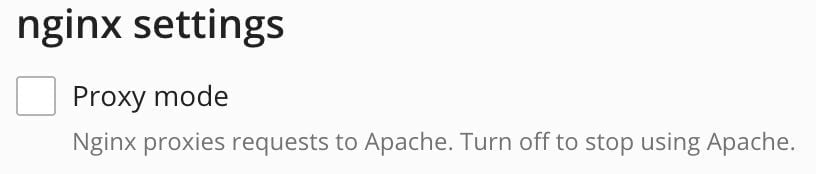
Step 2 finished.
Step 3: Activate Collabora in Nextcloud
Activate the Nextcloud Office app in Nextcloud and enter the subdomain created in Plesk.
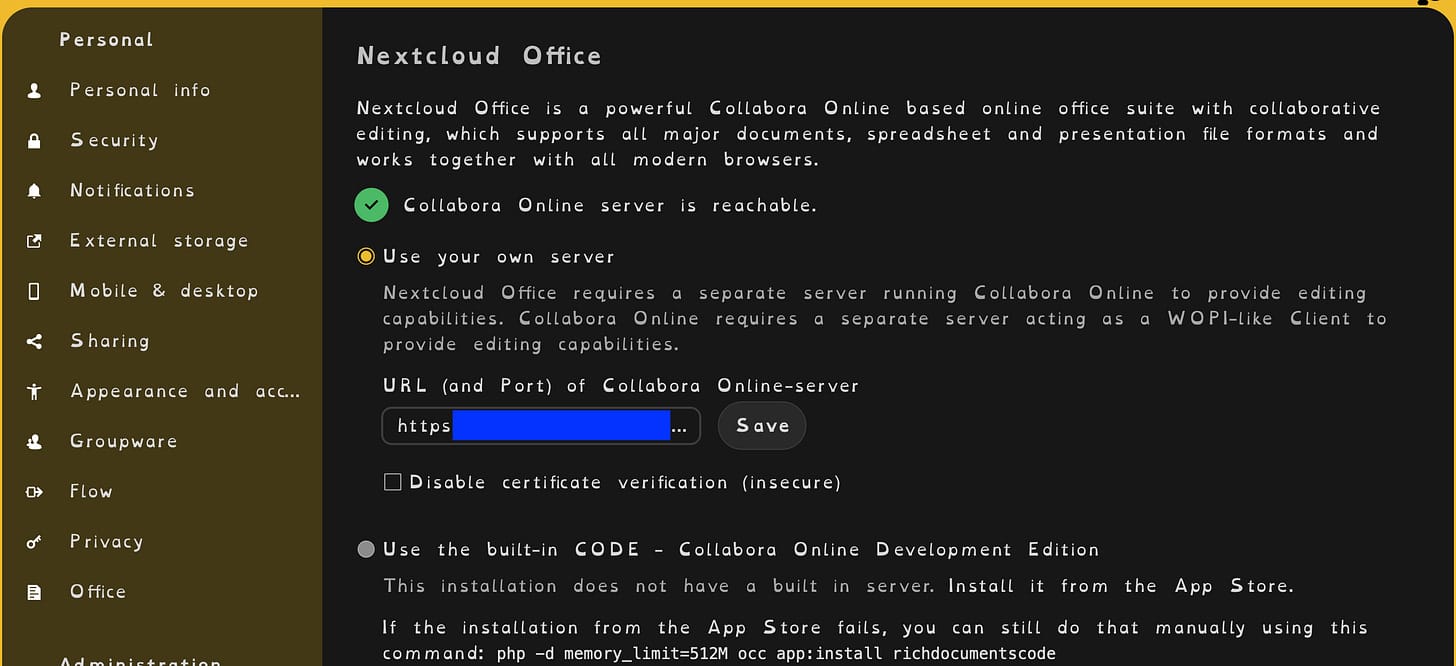
Now you can edit any document directly in the browser
Under the following URL you will find the Admin-Console of collabora:
https://office.your-domain.com/loleaflet/dist/admin/admin.htmlTroubleshooting
Open two web browsers, one with Nextcloud and one with Plesk. When you try loading Nextcloud to see if your changes work, clear the cache each time or your new reverse proxy settings will not be loaded.
Making a swap file if you need more memory:
if [ -r /swapfile123 ]; then echo "Stop please! /swapfile123 already exists!"; fi
dd if=/dev/zero of=/swapfile123 bs=1024 count=1024000
chmod 0600 /swapfile123
mkswap /swapfile123
swapon /swapfile123
My system has 2 vcores and 4GB of RAM.
Links:
Old post that this info is based on: https://markus-blog.de/index.php/2018/09/10/how-to-deploy-collabora-online-office-without-docker-in-plesk-and-connect-to-nextcloud-on-ubuntu/
Native installs: https://www.collaboraoffice.com/code/linux-packages/
Nextcloud admin manual: https://docs.nextcloud.com/server/25/admin_manual/configuration_server/config_sample_php_parameters.html
Swapfiles on Linux: https://www.howtogeek.com/devops/how-to-create-and-enable-a-swapfile-at-the-linux-command-line/
Proxy config Collabora: https://sdk.collaboraonline.com/docs/installation/Proxy_settings.html#reverse-proxy-with-nginx-webserver
Instructions: https://collabora-online-for-nextcloud.readthedocs.io/en/latest/install/
Native CODE on Linux: https://helpcenter.minsday.com/books/test/page/collabora-install#bkmrk-4.-configuration
Collabora Online Troubleshooting Guide: https://sdk.collaboraonline.com/docs/installation/Collabora_Online_Troubleshooting_Guide.html
Nextcloud CODE docs: https://docs.nextcloud.com/server/latest/admin_manual/office/configuration.html#wopi-settings
Running Collabora Online with Nextcloud and nginx: https://icewind.nl/entry/collabora-online/
Collabora with reverseproxy not working after upgrade to Nextcloud 23: https://github.com/nextcloud/richdocuments/issues/1904
Failed to load Nextcloud Office: https://github.com/CollaboraOnline/online/issues/4828
Collabora online doesn't load document: https://github.com/CollaboraOnline/richdocumentscode/issues/142
Ubuntu old setup: https://nerdonthestreet.com/wiki?find=Install+Nextcloud+21%2C+Collabora%2C+and+HPB+on+Debian+10
& video: